Download
Welcome to the download page. We're extremely excited for you. Read through the instructions below on how to fully set up your bot. The actual downloads are at the bottom of this page. Enjoy!
1. Download the zip. Begin by clicking the Download button next to your desired version. We recommend the newest version (at the top of the list) because it has the most features and is the most up to date. Once you click the button, you'll be taken to a page that asks you to confirm your download. Don't worry: this is only a Google Drive measure. That is where we keep our application zip files, and they are too large for Google to verify as virus-free. We promise we are not a virus, and we have many users who can verify.
2. Extract the zip. Once the zip file is downloaded, go to your Downloads folder, right-click the file, click "Extract all," pick your destination, and click Extract again. Make sure you choose a location you will remember. It's important for the future.
3. Shortcut. Once the program is downloaded and extracted, you can create a shortcut to the app for easier access. Make sure you do NOT just drag the .exe file to your desktop. All the files in the zip folder need to stay together, or you will get an error code upon launch. We recommend right-clicking the .exe, selecting "Show more options," and then "Pin to taskbar."
4. First launch. Now that you have made your shortcut, go back into your folder for your first launch. Double-click the program and wait. Sometimes the program takes a moment to boot. This is normal, and you shouldn't worry. Once the program boots for the first time, you will get a "Windows protected your PC" screen. This is because we are not a well-known application. Click "More info," and then "Run anyway." This may also take a moment to boot. Allow any pop-ups that may appear.
5. Emulator visual glitch. Once your application loads, boot up your MuMu emulator or BlueStacks and open Clash. NexusClash will most likely say "Not connected" under "Emulator status." To fix this, click the "i" next to the emulator status indicator and follow those directions. If the indicator is green but nothing is happening AND you are on BlueStacks, go to the gear icon (settings, on the right of your screen) and toggle Android Debug Bridge (ADB) on if it is not already. The bugs should now be fixed.
6. Licensing / activating the program. You are almost there! You now need to input your license key to actually use the bot. If you do not have one, click our Buy A License tab at the top of this page, then complete the guided steps to get your key. We are also constantly doing giveaways, so stay alert in our Discord. Once you have your key, copy and paste it into the License/Settings tab, then click "Validate license." Contact our support in the Discord if there are any issues with this step.
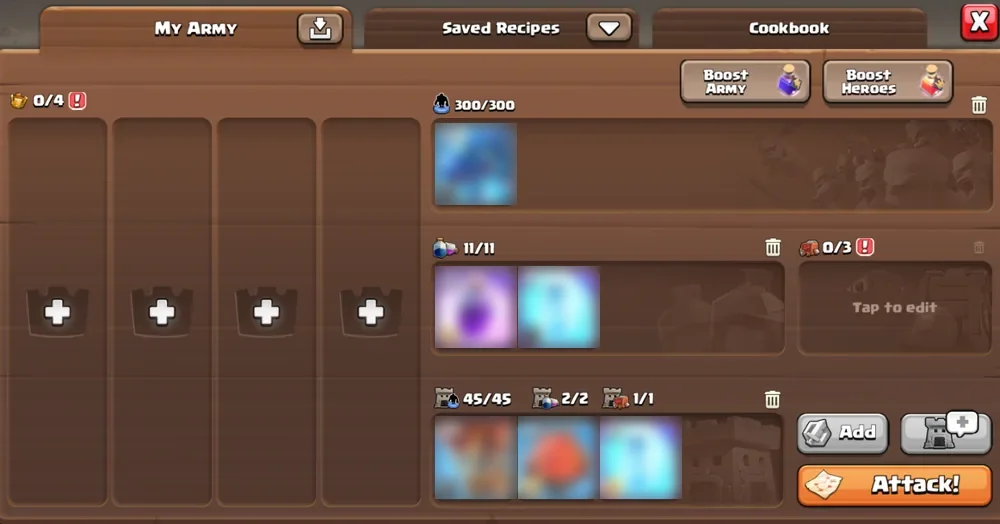
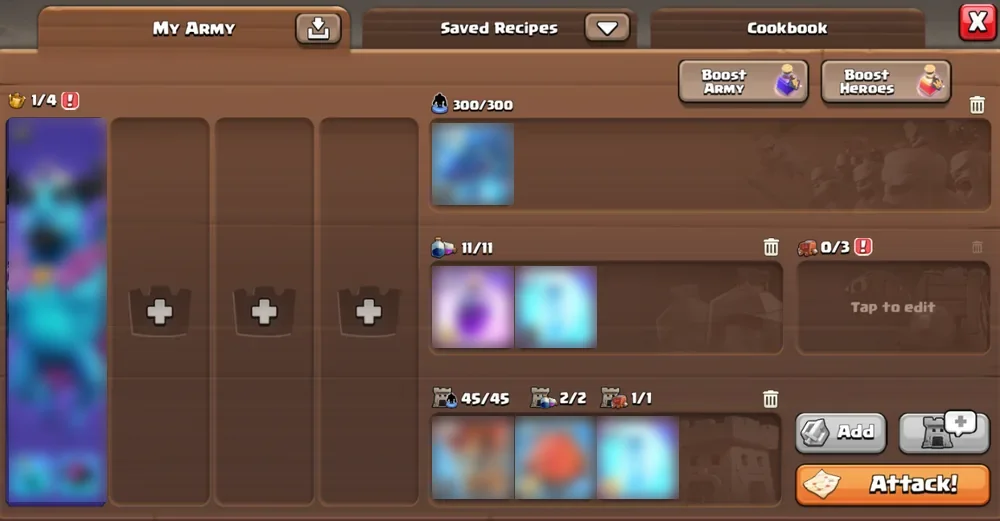
7. Army setup. Now you need to go into your game and customize your army. Follow the screenshots below while building your army, depending on the number of heroes you are going to use. Make sure you have only 1 slot for troops, 2 spell slots with the larger-capacity slot first, and a clan castle troop (but it doesn't use it, so don't worry). The actual hero or equipment doesn't matter. The exact army setups in the screenshots are HIGHLY recommended. Be sure to click the appropriate "Hero Count" based on your army.
-
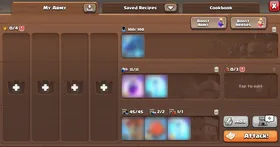
0 Heroes (click to enlarge) -
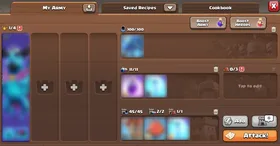
1 Hero (click to enlarge) -
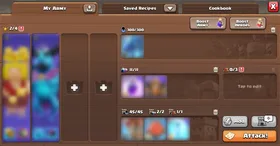
2 Heroes (click to enlarge) -
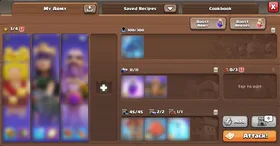
3 Heroes (click to enlarge) -
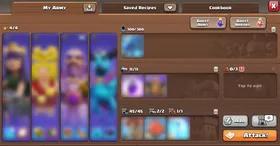
4 Heroes (click to enlarge)
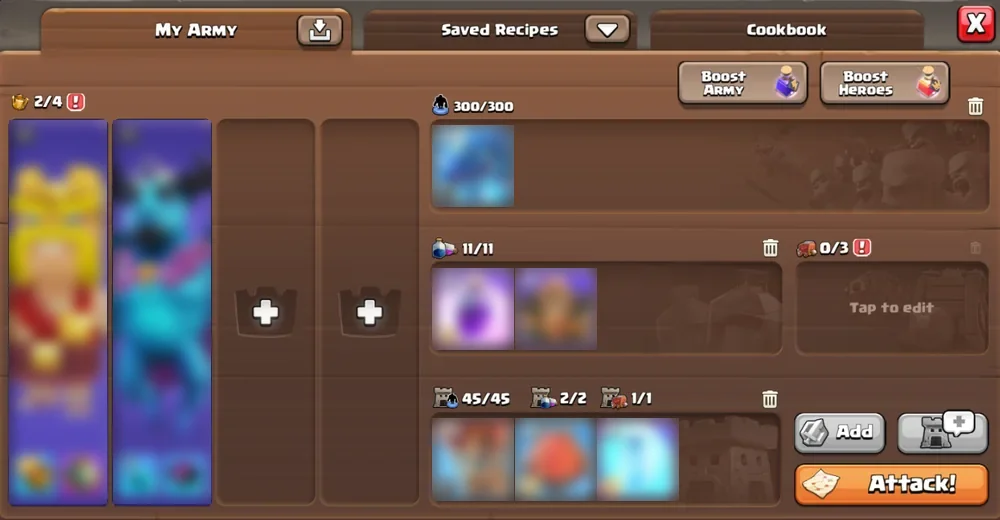
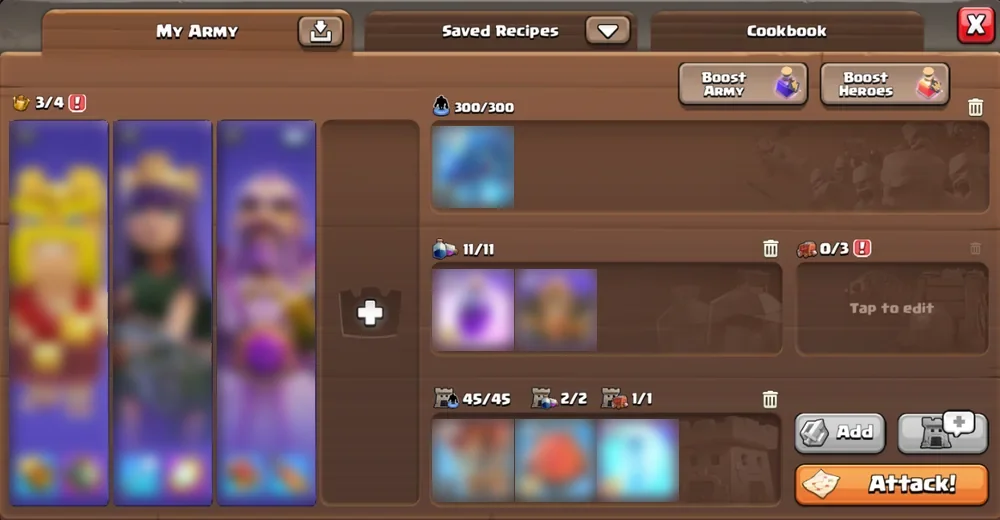
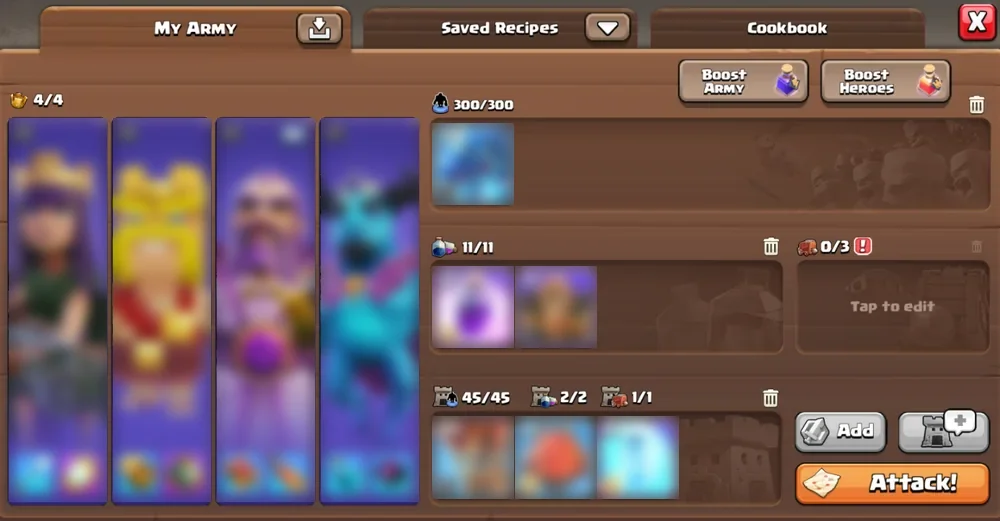
8. Loot values. Now that your army is set, change your "Min. Gold," "Min. Elixir," and "Min. Dark Elixir" to your desired values. These mean that the bot will skip past bases until these thresholds are met. Then, make sure you also set your max loot thresholds. These are the values that determine when the bot should stop attacking. Typically, most users set them to their max storage thresholds. A newer custom feature allows you to select which thresholds get paid attention to. For example, if you only have the Gold threshold selected, the bot continues to attack until your gold storage is filled, not paying attention to elixir or dark elixir.
9. Keep in mind. Here are some things to keep in mind while running the bot. A lot of users tend to skip over the zoom-in distance. Make sure you fully zoom into your home village before starting your first attack. The bot runs best when it is fully zoomed in. Also make sure your screen display is set to 1920x1080 in MuMu. After your first attack, CoC will automatically stay at its natural max zoom. Another frequent issue players run into is their army composition. View step 7, "Army setup," and view the images. Those are the exact ways the army needs to be set up, depending on how many heroes you are using. It must be exact.
10. You're done! That's all! Click "Start bot" and let it be! If you run into any issues at all, please contact us through a ticket in our Discord. The link is at the top of this page on the right-hand side.
Enjoy!
Updating. If you ever want to update your app, you need to follow these directions very closely. First, find the folder you extracted from the zip. Second, delete it. Third, repeat the download steps, starting at step 1. The app will malfunction a lot if you don't delete the old folder. Don't worry: you will still have the license key you had previously and don't need to pay again.
Downloads
The newest version is at the top. Select "View Update" to see what changed.
| Version | Release Date | Update Info | Download |
|---|---|---|---|
| v1.5 Latest | View Update
|
Download | |
| v1.4 | View Update
|
Download | |
| v1.3.2 | View Update
|
Download | |
| v1.3.0 | View Update
|
Download | |
| v1.2.0 | View Update
|
Download | |
| v1.1.0 | View Update
|
Download | |
| v1.0.0 | View Update
|
Download |